How to Set Up eSIM on Android: Complete Guide for Samsung, Pixel & More (2026)
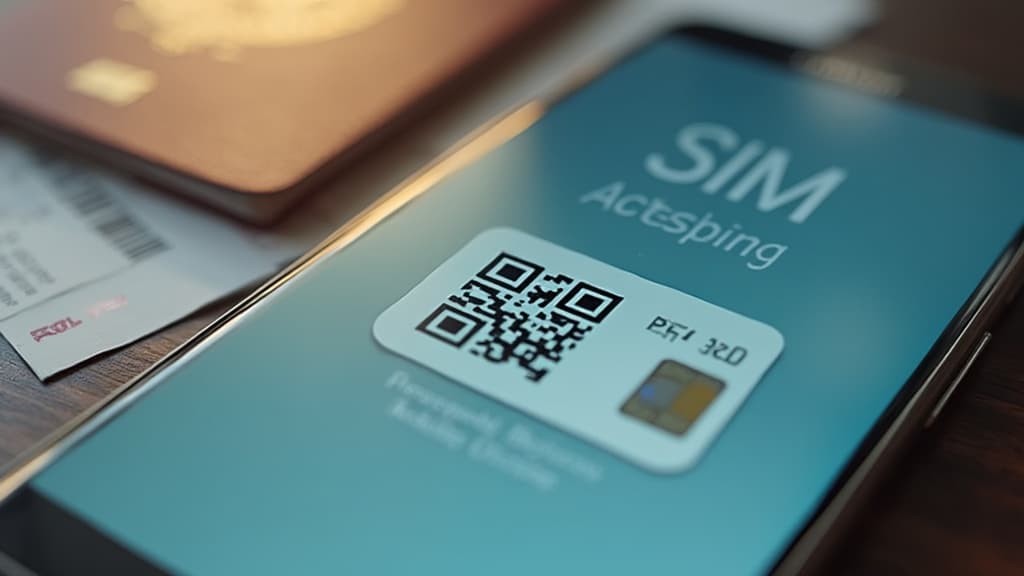
Setting up an eSIM on Android is surprisingly simple, but the exact steps vary depending on your phone brand and model. Whether you have a Samsung Galaxy, Google Pixel, OnePlus, or another Android device, this guide walks you through the entire process - from checking compatibility to activating your first eSIM plan.
Which Android Phones Support eSIM?
eSIM support has expanded significantly across Android devices. Here is a quick overview of compatible phones as of 2026:
Samsung Galaxy
- Galaxy S series: S20 and newer (S21, S22, S23, S24, S25, S26)
- Galaxy Z series: Z Flip, Z Flip3-6, Z Fold2-6
- Galaxy A series: A34 5G, A54 5G, A55 5G and newer
- Galaxy Note: Note 20 and newer
Google Pixel
- Pixel 3 and all newer models (Pixel 3a, 4, 4a, 5, 5a, 6, 6a, 6 Pro, 7, 7a, 7 Pro, 8, 8a, 8 Pro, 9, 9a, 9 Pro, 10)
Other Brands
- OnePlus: OnePlus 12, 13, Open
- Xiaomi: 13, 14 series, and select models
- Motorola: Razr series (2022+), Edge series
- Sony: Xperia 1 V, Xperia 5 V and newer
- Nothing: Phone (2), Phone (2a)
- OPPO: Find X5 Pro, Find X6 Pro and newer
How to check: Go to Settings > About Phone > look for EID (eSIM ID). If you see an EID number, your phone supports eSIM.
Before You Start: What You Need
Before setting up your eSIM, make sure you have:
- A compatible Android phone (check the list above)
- A stable WiFi or mobile data connection - needed to download the eSIM profile
- Your eSIM QR code or activation details - provided by your eSIM provider after purchase
- Updated software - make sure your phone is running the latest Android version
How to Set Up eSIM on Samsung Galaxy
Samsung's One UI makes eSIM setup straightforward. Here is how:
Method 1: QR Code (Recommended)
- Open Settings
- Tap Connections > SIM manager (or SIM card manager on older models)
- Tap Add eSIM or Add mobile plan
- Select Scan QR code from service provider
- Point your camera at the QR code provided by your eSIM provider
- Wait for the eSIM profile to download (this may take 1-2 minutes)
- When prompted, tap Confirm to add the plan
- Name your eSIM (e.g., "Travel" or "Japan Data") for easy identification
- Choose whether to use it as your default data line
Method 2: Manual Entry
If you received an activation code instead of a QR code:
- Follow steps 1-3 above
- Instead of scanning, tap Enter activation code manually
- Enter the SM-DP+ address and activation code provided by your eSIM provider
- Follow the remaining prompts to complete setup
Samsung-Specific Tips
- On newer Samsung phones, you can store multiple eSIM profiles and switch between them
- Samsung's Smart Dual SIM feature lets you use your physical SIM and eSIM simultaneously
- If you have a Dual SIM model, you can have up to 2 active SIMs (1 nano-SIM + 1 eSIM, or 2 eSIMs on newer models)
How to Set Up eSIM on Google Pixel
Google Pixel phones have some of the most streamlined eSIM support in the Android ecosystem:
QR Code Method
- Open Settings
- Tap Network & internet > SIMs
- Tap + (Add) or Download a SIM instead
- Select Next when prompted
- Scan the QR code from your eSIM provider
- Wait for the profile to download and activate
- Toggle the new eSIM on as your data line
Direct from Provider
Some eSIM providers have direct integration with Pixel phones:
- Go to Settings > Network & internet > SIMs
- Tap Download a SIM instead
- If your provider appears in the list, tap it and follow their specific setup flow
Pixel-Specific Tips
- Pixel phones from Pixel 6 onward support dual eSIM - no physical SIM needed at all
- Pixel's Adaptive Connectivity feature can optimize data usage between your SIMs
- If you are having trouble, try disabling WiFi during the eSIM activation process
How to Set Up eSIM on Other Android Phones
OnePlus
- Settings > Mobile network (or SIM & network)
- Tap Add eSIM or Add SIM
- Scan QR code or enter activation details
- Confirm and activate
Xiaomi
- Settings > SIM cards & mobile networks
- Tap Add eSIM (under SIM management)
- Scan the QR code
- Follow prompts to activate
Motorola
- Settings > Network & internet > Mobile network
- Tap the + icon to add a new SIM
- Choose Download SIM or scan QR code
- Complete the setup process
Managing Your eSIM After Setup
Once your eSIM is active, here are key management tasks:
Switching Between SIMs
- Go to Settings > Connections/Network > SIM manager
- Choose which SIM to use for mobile data, calls, and texts
- Most phones let you set different defaults for each
Enabling/Disabling eSIM
- You can turn an eSIM on or off without deleting it
- Useful for switching between travel and home plans
- Go to SIM settings and toggle the eSIM line
Deleting an eSIM
- When you no longer need a plan, you can remove it completely
- Warning: Once deleted, you will need a new QR code to reinstall
- Go to SIM settings > select the eSIM > tap Remove or Delete
Renaming Your eSIM
- Give each eSIM a clear name (e.g., "Home", "Europe Trip", "Japan")
- Makes it easy to switch between multiple stored profiles
Common eSIM Setup Issues on Android (And How to Fix Them)
"eSIM not supported" error
- Check compatibility: Not all variants of a phone model support eSIM. Carrier-locked phones may have eSIM disabled
- Update software: Make sure you are on the latest Android and carrier updates
- Contact carrier: Some carriers need to enable eSIM on your account first
QR code won't scan
- Make sure the QR code is clearly displayed and well-lit
- Try adjusting the distance between your camera and the QR code
- Use the manual entry method as an alternative
- Check that your camera app has permission to access the scanner
eSIM downloads but has no signal
- Toggle airplane mode on and off
- Restart your phone
- Make sure data roaming is enabled (especially for travel eSIMs)
- Check that the eSIM is set as your active data line
- Manually select the network operator in Settings > Network
Multiple eSIMs conflicting
- Only one eSIM can be active for data at a time (on most phones)
- Make sure the correct eSIM is selected as your data line
- Disable any eSIM profiles you are not currently using
eSIM vs Physical SIM on Android: Quick Comparison
| Feature | eSIM | Physical SIM |
|---|---|---|
| Setup speed | Minutes (instant download) | Requires store visit or shipping |
| Multiple plans | Store several profiles | One per SIM slot |
| Travel convenience | Switch plans digitally | Swap physical cards |
| Risk of loss | Cannot be lost or damaged | Easy to misplace |
| Phone compatibility | Newer phones only | Universal |
| Carrier lock | May be restricted | May be restricted |
Pro Tips for Android eSIM Users
- Install before you travel - Download your travel eSIM while on WiFi at home, then just enable it when you land
- Screenshot your QR code - Keep a backup in case you need to reinstall (note: some QR codes are one-time use)
- Label everything - With multiple eSIMs stored, clear names prevent confusion
- Check dual SIM settings - Make sure calls go to your home SIM while data routes through your travel eSIM
- Monitor data usage - Android's built-in data monitor works per-SIM, helping you track travel data separately
Ready to Try eSIM on Your Android Phone?
Setting up an eSIM on Android takes less than five minutes and opens up a world of flexible connectivity. No more hunting for SIM card shops at foreign airports. No more fumbling with tiny nano-SIM cards and ejector pins. Just scan, activate, and go.
Browse eSIM Station's data plans to find the perfect option for your next trip. Whether you need a quick weekend plan for a European getaway or unlimited data for a month-long digital nomad stint in Southeast Asia, there is an eSIM plan that fits.
Related Articles

How to Keep Your WhatsApp Number While Using a Travel eSIM in 2026
Wondering if a travel eSIM will change your WhatsApp number? Here is how to keep your existing WhatsApp account, avoid roaming charges, and use eSIM data smoothly while traveling in 2026.

eSIM vs Pocket WiFi: Which Is Better for Travel in 2026?
Comparing eSIM and pocket WiFi for international travel in 2026? Here is the practical guide to cost, convenience, battery life, coverage, and which option is best for digital nomads, families, and short trips.
Best eSIM for Long-Term Travel in 2026: What Frequent Travelers and Digital Nomads Should Look For
Looking for the best eSIM for long-term travel in 2026? Learn what matters most for digital nomads, slow travelers, and frequent flyers, from coverage and top-ups to hotspot support and cost control.